
1.12 Sorting by Time or Folders, and Creating Folders
How to switch the chat sidebar between Recent and Folders views, and how to create and manage folders to keep your conversations tidy.
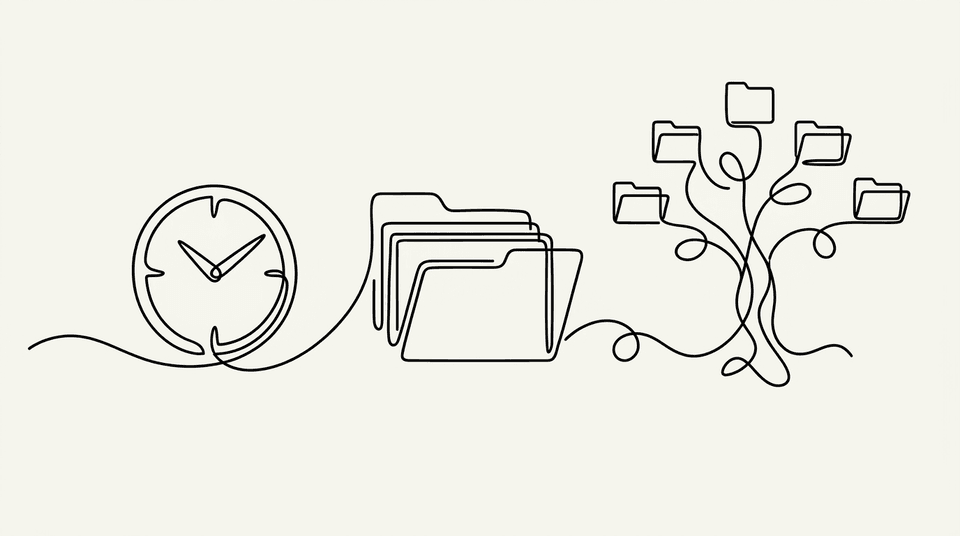
The chat sidebar lists your conversations with search and two view modes, toggled by an icon in the sidebar. Keep the sidebar tidy — switch to Folders to group conversations by class, topic, or project; switch to Recent to see everything by date.
Who can use it
Available to both teachers and students.
The two view modes
- Recent (time-based) — the default. Conversations are grouped under Pinned, Today, Yesterday, Last Week, then older months (e.g. "Jun 2026"), sorted by most recent activity. More load as you scroll.
- Folders — shows your folders (alphabetical) plus an Uncategorised group. Expanding a folder shows its conversations, still sub-grouped by the same time headings.
Switch between the two using the view toggle icon in the sidebar. Your chosen view is remembered in your browser.
Creating and managing folders
- Create a folder via a conversation's ⋮ menu → Move to folder → New folder… (available in Folders view).
- Move to folder / Remove from folder are on each conversation's ⋮ menu in Folders view.
- Rename and Delete a folder via the folder heading's ⋮ menu. Deleting a folder moves its conversations back to Uncategorised — it doesn't delete the conversations.
Tips
- Use folders to group by class, topic, or project, then switch back to Recent when you just want to see what you worked on most recently.
- Within a folder, conversations are still ordered by time — so your latest work in that folder is always near the top.
- Use the sidebar search alongside either view to jump straight to a conversation by name.
Why it helps
A busy sidebar can be hard to navigate. Folders let you organise conversations the way you think about your work, while Recent keeps everything a scroll away by date — and CurricuLLM remembers whichever view you prefer.